Order status
Edited a Binance open order and the order ID changed? Editing cancels the old order and places a new one
Binance's help page says it plainly: once an edit goes through, the previous order is canceled and a new order ID is created. Your history will show two orders, and existing fills stay with the old ID. The new order may fill partly or completely straight away if its price matches orders on the other side of the book. Any amount left resting on the book joins behind orders already at that price.
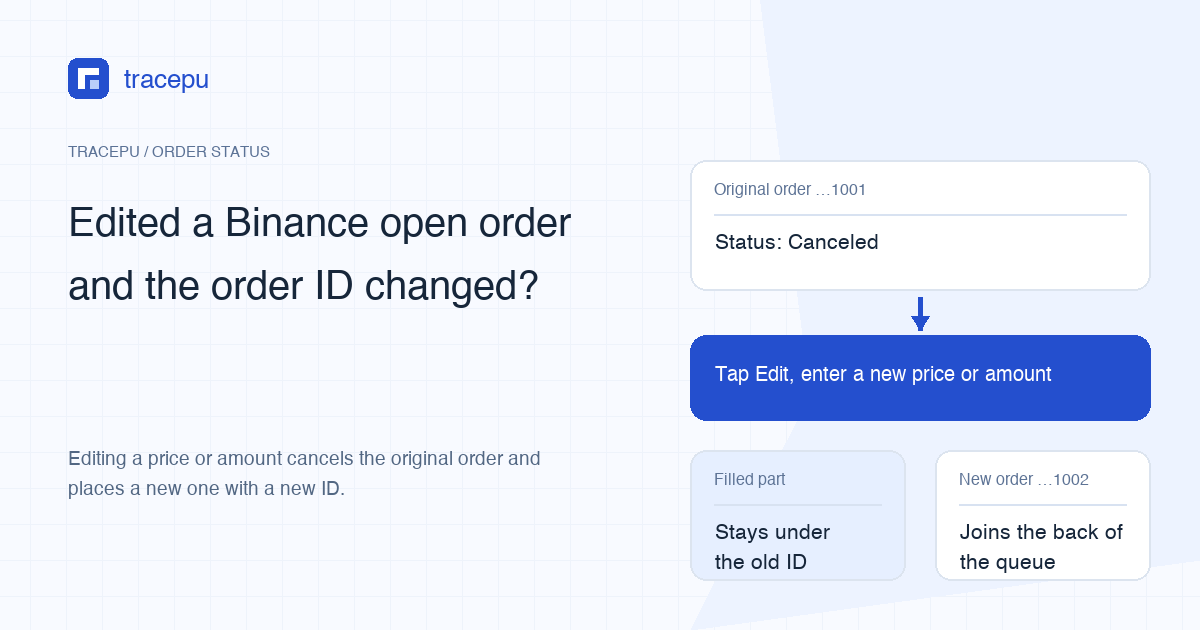
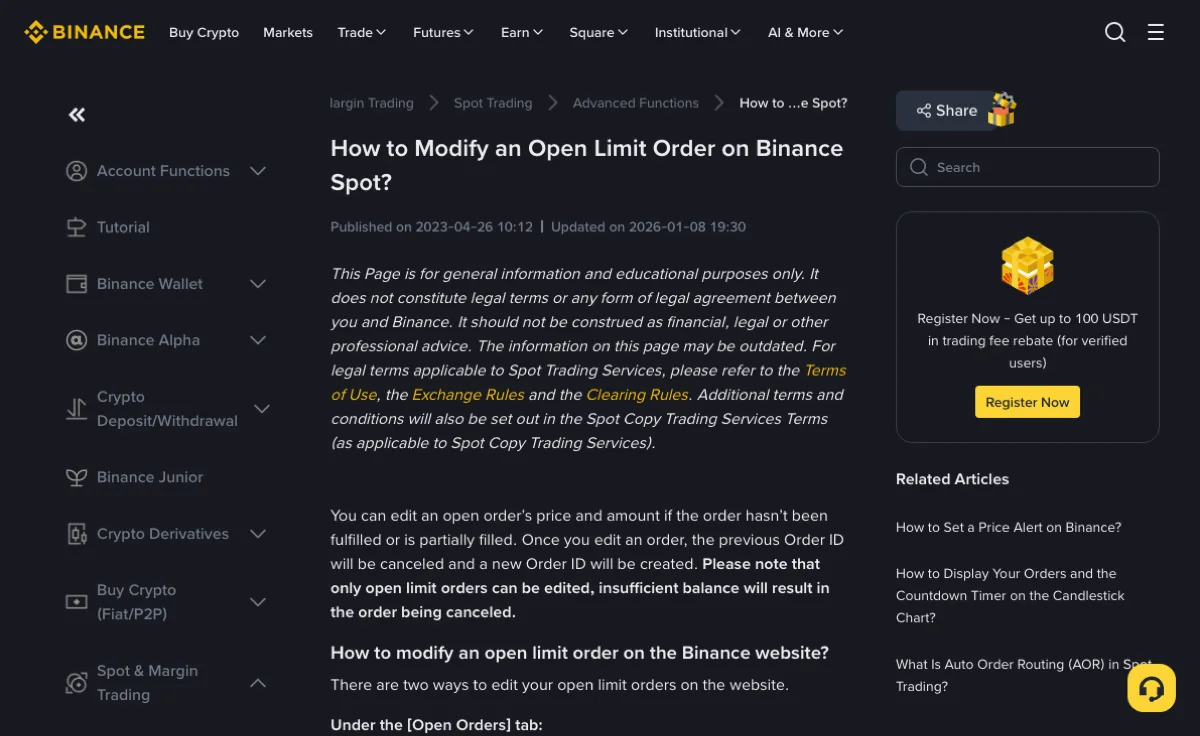
You changed the price or amount of a limit order under Open Orders on Binance Spot, and now the order ID is different and the original shows as canceled. A changed ID is expected after a successful edit; check the new order's status to see what happened next. Binance's help article How to Modify an Open Limit Order on Binance Spot? says: “Once you edit an order, the previous Order ID will be canceled and a new Order ID will be created.” The same paragraph adds that only open limit orders can be edited, and that insufficient balance will result in the order being canceled.
So the Edit button does two jobs for you. It cancels the old order, then places a fresh one with your new numbers. Your records, your locked balance and your place in the queue all need to be read as two separate orders.
Where to change the price or amount of a Binance open order
The help page lists three places to do it. Each one works only on a limit order that is still sitting on the order book.
- Website, Open Orders tab: below the spot trading chart, find the order under [Open Orders], click its [Edit] icon, enter the new price and amount in the pop-up, then click [Confirm].
- Website, on the chart: in TradingView mode, with open orders displayed on the candlestick chart, your order appears as a line on the chart. Drag it to a new price, or click it and edit in the pop-up. Dragging can be switched off with the [Kline Adjustment] toggle in the side panel that opens from the [Settings] icon at the top right of the trading page.
- App: go to [Trade] → [Spot], open [Open Orders] at the bottom, tap [Edit] next to the order, and enter the new price and amount.
Dragging an order on the chart brings up a confirmation window. Read the new price before you confirm. If you rarely edit from the chart, turning Kline Adjustment off removes the chance of moving an order by accident.
After an edit, your order history has one more order in it
Say you placed a buy order on AAA/USDT at 1.00 USDT per AAA for 100 AAA, so the order is worth 100 × 1.00 = 100 USDT. After 30 AAA fill, you edit it: the remainder is canceled and a new order for 70 AAA goes in at 1.02 USDT. The figures below cover the order value only. They assume nothing else filled while the cancel went through and the new order has not filled yet. Check fees separately, in whichever asset they were actually charged.
Once the edit succeeds, the records split like this:
- The old order shows Canceled, with 30 AAA filled. The trade details and fees for those 30 AAA stay under the old order ID. They do not move to the new order.
- The new order has its own ID, a price of 1.02 and an amount of 70 AAA. It appears under Open Orders with 0 filled.
- Your balance: the 70 USDT that was locked for the old order's unfilled 70 AAA is released by the cancel. The new order then locks 70 × 1.02 = 71.40 USDT. The extra 1.40 USDT has to come out of your available balance; if it is not there, the help page's warning applies and the order is canceled.
In this example, the amount you still want is your target minus what already filled: 100 − 30 = 70 AAA. Type 100 into the new order instead and the two orders together could fill up to 30 + 100 = 130 AAA. Before you edit, look at the old order's latest filled amount, then check the amount in the pop-up and on the confirmation. The 30 AAA you already bought is not still waiting to be bought.
When you later work out your average buy price, combine the fills from both orders; average price for multiple Binance fills shows how. The same goes for exports. Filtering by order ID shows only one of the two orders, so filter by trading pair and time range instead, as described in how to export Binance spot records.
Does editing the price keep your place in the queue?
No. The help page does not talk about the queue, but it does say the original order is canceled and a new one created. Binance's developer documentation, describing cancel-replace, is direct about it: “the new order gets a new order ID and you lose time priority”, and any part of the new order left resting on the book queues behind existing orders at the same price.
For a limit order that matters. At any one price, the order that arrived first fills first. Suppose you were near the front at 1.00 and only wanted to trim the amount from 100 to 90. After a cancel-and-replace edit, the new order sits behind every order already resting at 1.00, and those ahead of you may fill or get canceled before yours is reached. Weigh the smaller amount against starting over in the queue before you press Edit.
The same developer page describes a different request, Order Amend Keep Priority. It can only reduce an order's quantity, and the order keeps its ID and its place in the queue. It is sent through the API (REST, WebSocket or FIX), so it is not what the [Edit] buttons on the website and app do; the help page describes those as cancel-and-replace. When you check the result, go by the exchange's order ID, not the client order ID (clientOrderId), which can be set separately.
The new price has to pass the order rules again
The new order is a brand-new order, so it has to meet the pair's rules at the moment you submit it. Any of these can make an edit fail, or turn out differently from what you expected:
- The order is now too small: after cutting the amount, price × amount falls below the minimum order value. See Binance minimum order: what to check.
- The amount is off the step size: it has to be a whole multiple of the allowed step, and matching the number of decimals is not enough. See Binance quantity step size explained.
- The price is too far from the market: drag an order too far and it can fall outside the allowed price range. See limit price out of range.
- The price crosses the spread: move a buy order to or above the lowest ask, or a sell order to or below the highest bid, and the new order can fill partly or fully right away. Whatever it takes from orders already on the book is charged at the taker rate; see why a limit order can pay taker fees.
You can look up a pair's current minimum order value, quantity step and price tick with our spot order rules lookup before you edit.
After the edit, find the new order ID first, then its status. If the new order is not under Open Orders, it may have filled completely, or it may have been rejected or ended right after submission. Look in Order History and Trade History, filtered by pair and by the time of the edit. Only once you have confirmed that the old order is canceled, that the new one did not fill, and that nothing is still being processed should you think about placing it again. If the page shows an error or the records have not refreshed yet, find out what actually happened before resubmitting.
The old order filled while the edit window was open
In a fast market, part or all of the old order can fill while the edit pop-up is still on your screen. The help page does not say what an edit does in that case. What you can rely on is the record: whatever the old order's final filled amount is, that is what filled, and pressing Edit does not undo it.
So don't look only at the new order after an edit. Open the old one and read its final status and filled amount. If it filled in full, those coins are already in your account, and a new order buys more on top. For the order of checks when a cancel request and a fill land at the same moment, see what a partially filled order means.
Three places to check once the edit is done
- Open Orders: if the new order still has an unfilled part, check its ID, price, order amount and remaining amount. A new order that already filled completely will only be in Order History.
- Order History: read the final status and filled amount of the old order and the new one separately, then match each against its own trade details. An old order that filled in full had nothing left to cancel.
- Available and locked balance: keep three movements apart: the funds the old order released, the funds the new order's unfilled part has locked, and the changes from fills and fees. If they don't add up, work through available vs locked balance on Binance.
If you need Binance support to look into it, give them both order IDs and the time of the edit, so they can tell which fills happened before you changed the order.