After a trade
How to export Binance Spot trade history and keep orders and account activity straight
No single export answers every question. Save the order instruction, the actual fills, and related balance activity as separate layers.
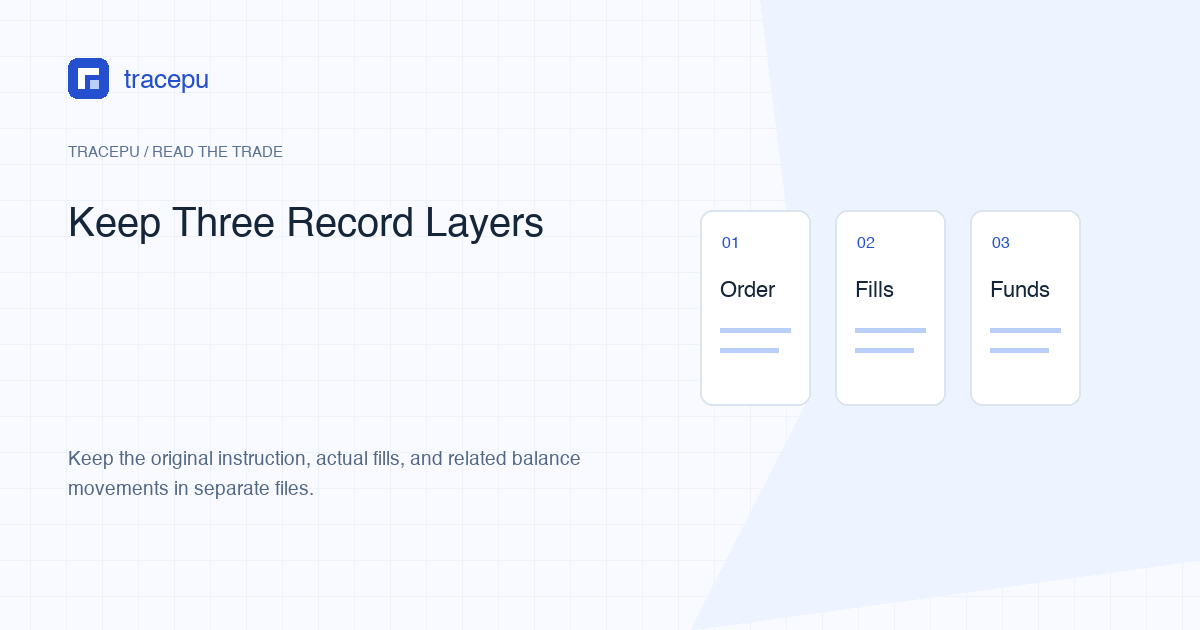
To check what you submitted, open the order record. To check what actually traded and which fees were charged, use the trade or fill records. To explain a wallet balance change, you may also need account activity.
No single CSV should be forced to answer all three questions. Keeping them separate makes gaps easier to find and prevents an order instruction from being mistaken for an execution.
The three record layers

| Record | What it describes | Useful fields |
|---|---|---|
| Order History | The instruction and its status | Pair, side, type, original quantity, executed quantity, status, order time, order ID |
| Trade History | Actual matched executions | Fill price, quantity, quote amount, commission, commission asset, trade time, available IDs |
| Account activity | Other movements affecting balances | Asset, amount, activity type, status, time, transfer or transaction reference |
One order can produce many trades. A canceled order can have zero fills, or it can be partially filled before the remainder is canceled. A wallet movement can come from a deposit, withdrawal, internal transfer, distribution, or another product rather than the Spot matching engine.
This guide stays with Spot records. Convert, P2P, Margin, Futures, deposits, and withdrawals can have separate histories. If the activity happened elsewhere, an empty Spot export does not prove the event never occurred.
Export the current Spot trade history
Binance's current Spot transaction-history guide, updated 2026-01-27, gives this web path: sign in, open Profile, choose Orders and Spot Order, then open Trade History and Export Trade History. On the app, it directs users from the Spot trading page to the Orders icon, then Order History or Trade History and the download control.
That guide's web path is for Trade History. This article does not give a separate export route for Order History on the web or for account activity; if your signed-in pages show a download control there, use it, and otherwise note the order IDs, times, and statuses from those pages next to the trade export.
Names and routes can differ by region, account, app version, or later interface update. Use the labels visible in your own signed-in product and avoid search ads or third-party login pages. Tracepu does not need your account access or exported file.
When Tracepu checked the same guide in September 2026, it stated:
- an immediate app export can cover up to six months and 10,000 data points;
- a generated statement can cover up to one year from a selected date after 2017-07-13;
- generated history is shown in UTC+0;
- up to five statements can be generated per month;
- the statement download link is retained for seven days.
Those are current page details, not permanent promises. Check the live export screen before planning many date windows. Download a ready file promptly and keep it in your own storage.
Plan date windows before pressing Generate
Write the earliest and latest local event times, then convert them to the export's stated time zone. Add a small overlap at boundaries so a trade near midnight or at the exact cutoff is not missed. After downloading adjacent windows, use identifiers to check overlap rather than deleting similar rows by sight.
Time-zone illustration: an order placed at 22:30 on a clock running three hours behind UTC was recorded at 01:30 on the next UTC date. A one-day export selected only by the local calendar date could miss it. These times explain conversion and do not describe a personal account.
A long-lived order may cross two windows: creation appears in one period, while later fills appear in another. Export both the order and trade periods needed to cover the complete life of the order.
Keep the raw CSV unchanged
Create a folder for the export session and save the original files before opening them in a spreadsheet. Copy them to a working folder for sorting, formulas, added notes, or time conversion. Do not overwrite the source CSV with a cleaned version.
A simple structure works well:
- originals: files exactly as downloaded, plus a note of the selected filters;
- working: imported sheets, formulas, matching columns, and annotations;
- share: only the rows and screenshots needed for a specific support question, with private information removed.
Name files with record type, date range, and time zone, such as spot-trades_2026-01-01_2026-06-30_UTC.csv. Do not place a password, full UID, or other secret in the filename.
Prevent spreadsheets from changing long IDs
Order and trade identifiers are labels, not values you need to add. Excel limits numbers to 15 significant digits and can display long values in scientific notation. Once digits have been changed, applying a different cell format later cannot recover the original identifier.
Microsoft's guidance on long numbers recommends importing the affected CSV column as text. Use the import workflow rather than double-clicking the CSV when you need to preserve IDs. Then compare the imported value with the untouched raw file.
Do the same for identifiers with leading zeros. A program that treats them as numbers may remove those zeros even though they are part of the label.
Link fills to an order with real identifiers
When both records expose a common order ID, use it as the primary link and cross-check symbol and side. The Binance Spot glossary defines orderId as identifying an order on a symbol, so an ID should not be considered globally meaningful without its symbol context.
Do not join records only by rounded price or nearby time. Two orders can share a price, and multiple events can occur within one timestamp display interval. If an export hides the needed identifier, record that limitation. A probable match should remain labeled probable.
For every trade row, keep fee amount next to fee asset. A column called “Fee” containing 0.01 is incomplete when one row could mean ABC, another USDT, and another BNB. Grouping or converting them without units creates false totals.
Check the first row, last row, count, and filters
After opening an export, verify:
- The file has headers and data rows.
- The market is Spot and the symbol or side filters match the intended scope.
- The first and last timestamps make sense for the selected window and stated time zone.
- The order period and fill period both cover events that crossed a boundary.
- Every commission number still has a commission asset.
- Long IDs exactly match the raw CSV.
- Overlapping files have been checked for repeated IDs without editing the originals.
If the file is empty, return to the export screen and inspect market, date range, pair, side, and record type. Save a screenshot of the chosen filters if needed, but do not treat the empty result as final proof of no activity until the scope is confirmed.
Use all three layers for a balance question
Suppose an order requested 12 ABC, Trade History shows two fills totaling 7 ABC, and Order History shows the remainder canceled. Those two records explain why only 7 ABC traded. If the wallet rose by 6.993 ABC, inspect the recorded fees. If it still does not reconcile, check account activity for another movement in the same time range.
The order record should not be rewritten to say “bought 12,” because 12 was the instruction. The trade rows should not be discarded because the order summary is easier to read. Each layer preserves a different fact.
Leave a short source note with your working file
At the top of a reconciliation sheet, record which raw files were used, when they were downloaded, the source time zone, filters, and any transformations. State whether trade rows were linked by a shared ID or only inferred from surrounding fields.
For a support request, share only the relevant copy and keep the originals private. The order evidence and privacy guide explains how to remove unrelated identifiers, balances, and secrets without destroying your own source record.
While the working file is still open, pick one figure in it, such as a fee total or a balance change, and trace it back through the raw CSVs to the exact order, fill, fee asset, and balance event behind it. If a step in that chain is missing, export the date window it belongs to again now, while you still know which window to ask for.