Rules and fees
Why Binance rejects a quantity: step size is not decimal precision
The question is not only how many decimal places you typed. Your quantity must land on an allowed increment for that pair and order type.
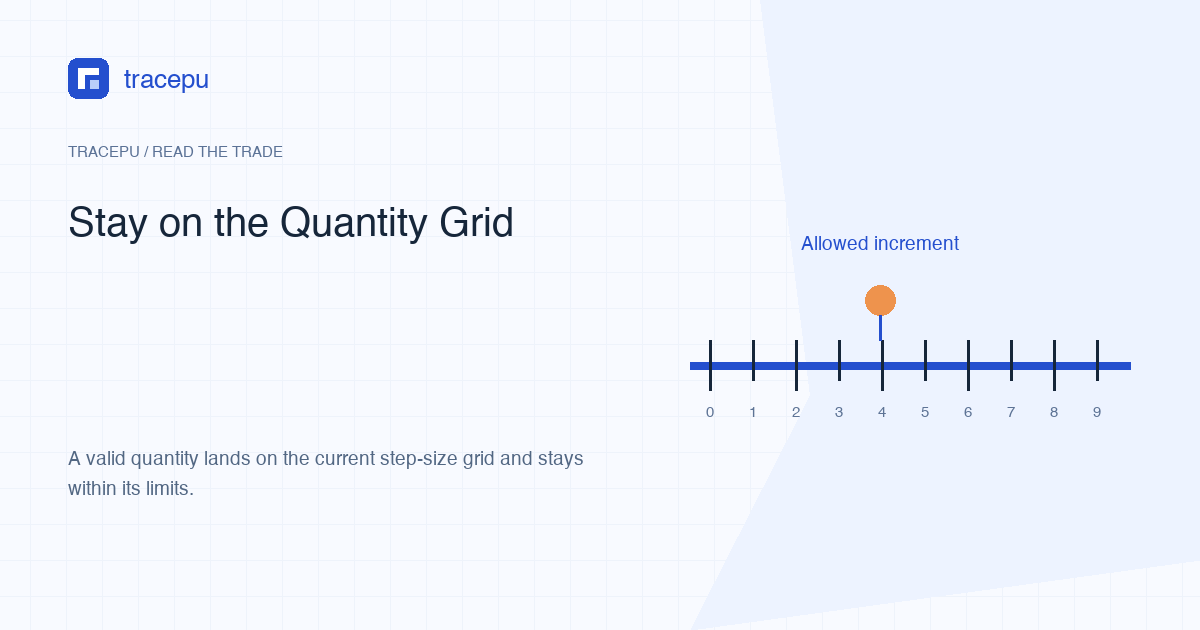
Imagine a ruler marked 0, 0.05, 0.10, 0.15, and so on. A Binance Spot quantity rule can work like that ruler: your number has to land on a mark. The fact that an input box displays several decimal places does not mean every value with that many decimals is allowed.
That is the practical difference between precision and step size. Precision concerns how a value can be represented. stepSize describes the intervals between permitted quantities. If the step is 0.05, then 1.10 is on the grid while 1.12 is not, even though both show two decimal places.
Read minQty, maxQty, and stepSize together
For a normal Spot quantity, Binance's LOT_SIZE filter contains three fields:
minQty: the smallest allowed base-asset quantity;maxQty: the largest allowed base-asset quantity;stepSize: the increment between allowed quantities.
The current Binance Spot filter documentation states that a quantity must stay within the minimum and maximum and be an exact multiple of the applicable step. These fields belong to the symbol. They are not a universal number for every asset or pair.
Grid illustration: suppose minQty is 0.10, maxQty is 100, and stepSize is 0.05. Then 0.10, 0.15, 0.20, and 3.75 are on the grid. A quantity of 0.12 is above the minimum but off the grid. These invented values do not describe a live trading pair.
Notice why “I am above the minimum” is incomplete. A number can pass minQty and fail stepSize. It can land on the grid and exceed maxQty. Treat the three conditions as separate rows on a checklist.
Why counting decimal places gives the wrong answer
Some steps look like a simple decimal-place rule. A step of 0.001 gives marks at 0.001, 0.002, and 0.003, so three decimal places seem to explain it. That shortcut breaks when the leading digit is not 1. With a step of 0.005, 1.235 is valid but 1.234 is not; both have three decimal places.
Trailing zeros are another distraction. The values 1.2, 1.20, and 1.200 are numerically equal. Adding a zero changes the display, not the location on the grid. If a quantity is invalid because it lies between steps, adding zeros cannot move it.
Removing decimals can also be wrong. If the valid step is 0.25, rounding 1.37 to 1.4 still misses the grid. Rounding to 1 may land on a mark but change the order by much more than intended. The safe task is choosing a nearby valid quantity and then reviewing its value and risk, not applying a familiar decimal format automatically.
A simple grid check
When the applicable step is greater than zero, divide the proposed quantity by stepSize. A whole-number result means it sits on a multiple of the step. For the teaching grid above, 1.25 ÷ 0.05 = 25, so 1.25 is on the grid. By contrast, 1.22 ÷ 0.05 = 24.4, so it is not.
Use exact decimal arithmetic if you calculate this in software or a spreadsheet. Binary floating-point values can produce tiny remainders for decimals that look exact on screen. A beginner using the normal order form does not need to write code; the division is a way to understand the rule and check a suspicious value.
Only perform this division when the current applicable quantity step is positive. A real response can show a zero stepSize, but the Binance documentation does not say that zero disables LOT_SIZE or MARKET_LOT_SIZE. Do not divide by zero or guess what it means. Save the returned value and exact rejection message before changing the order. Recheck the current pair and order type on the trading page, then continue checking the other applicable quantity, notional, price, balance, and account conditions.
Market orders may have a separate quantity filter
Binance documents MARKET_LOT_SIZE for market-order quantities, alongside LOT_SIZE. When diagnosing a market order, inspect the rule set returned for that symbol and the way the order is specified. Do not copy a limit-order quantity conclusion into every market-order case.
A market buy may also let the user enter an amount of the quote asset to spend rather than a base-asset quantity. The final gross quantity is then determined by actual fills. Its net addition to the wallet may be lower if a fee is deducted in the bought asset. That is a reconciliation question after execution, covered in filled quantity versus received quantity; it should not be mixed into the submitted-quantity grid.
Separately, notional filters may apply to market orders using Binance's documented reference-price logic. Passing the quantity step does not prove that the estimated order value passes those conditions.
How to adjust an invalid quantity without creating a new problem
First decide whether you are willing to change the order. A rule does not tell you to spend more or take a larger position. If you do adjust, choose a grid value deliberately. Moving down can reduce spending but might fall below minQty or minNotional. Moving up can meet a minimum but use more balance than intended.
| Change | What can change with it |
|---|---|
| Move to the next lower step | Order value may fall below its minimum |
| Move to the next higher step | Required balance and exposure increase |
| Change the limit price | Notional value changes even if quantity does not |
| Switch to a market order | Applicable filters and execution-price uncertainty can change |
Review the order confirmation after every adjustment. A mathematically valid grid point is not automatically a sensible order for you.
Check the current pair instead of saving a decimal rule
Step sizes can change. Binance has published pair-specific step-size adjustment announcements and points API users to GET /api/v3/exchangeInfo for current values. That means an old screenshot, a bot configuration, or a remembered number can become stale while still looking plausible.
Use the exact trading symbol. The same base asset paired with two different quote assets can have different filters. Tracepu's Spot rules lookup can show public symbol rules without asking for account credentials. It cannot see personal restrictions or promise acceptance.
Quantity rejection checklist
- Confirm that you are looking at Spot, not Futures, P2P, Convert, or a withdrawal screen.
- Write down the exact pair and identify the base asset whose quantity you entered.
- Read
minQty,maxQty, and the applicable positivestepSizefrom a current source. - Test the number as a multiple of the step; do not rely only on decimal places.
- If a step component is zero, do not divide by it or discard the other rules.
- Recalculate the order's notional value after changing quantity or price.
- Check available balance, symbol status, permissions, and the exact account error.