After a trade
Is Binance trade history in UTC? How to convert it to your local time
The export is stamped in UTC+0. Add your own offset to get local time, and check whether the date moved with it.
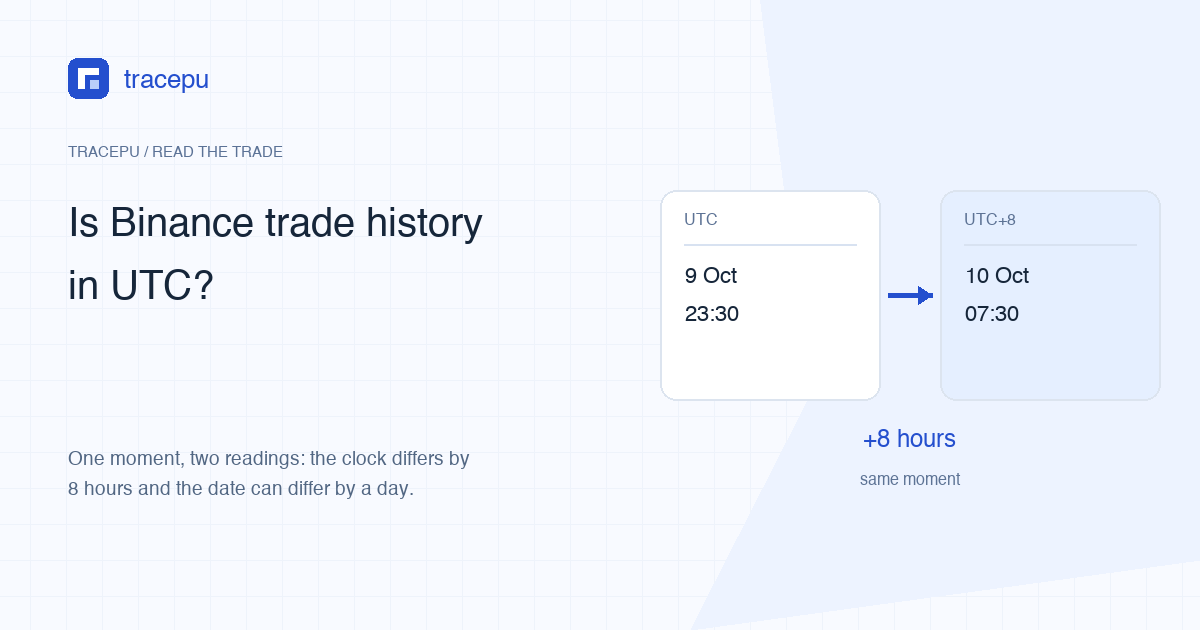
Yes. The Spot trade history you export from Binance is stamped in UTC+0, not in the time zone you live in. Binance's help article on downloading the statement says it in one line: “The history is shown in UTC+0 and contains information before 00:00.” To read a row in local time, add your own offset from UTC: 8 hours in Singapore or Manila, 5 hours 30 minutes in India, 1 hour in Lagos.
The date can move with the clock. At UTC+8, every fill the file stamps at 16:00 or later belongs to the next calendar day where you are. If the time you remember is hours away from what the file shows, or a whole day off, apply the offset before you conclude the record is wrong.
Example: suppose you sold some AAA/USDT and the exported row reads 2026-10-09 23:30. Add 8 hours and the UTC+8 time is 07:30 on 10 October. You remember selling “on the morning of the 10th”, the file says the 9th, and filtering the file for 10 October will not find the row.
What time zone is the Binance trade history export in?
UTC+0. The source is the Binance help article How to Download Spot Trading Transaction History Statement, where the sentence sits among the notes on generating a statement. On the website, the same article gives the route as [Profile] → [Orders] - [Spot Order] → [Trade History] - [Export Trade History], with the dates set on the calendar bar.
The second half of that sentence, “contains information before 00:00”, is not explained any further on the page. Nor does the page say which time zone's midnight the calendar dates are cut at. The practical answer is to pick a range one day wider on each side: for fills on 10 October local time, select 9 to 11 October, convert the times once the file is open, then filter for the day you want. The first and last rows only tell you when the first and last fills happened. Hours with no trading leave no rows, so those two rows cannot tell you where the export window began or ended.
When you open the file, read the header of the time column before anything else. If the header names a time zone, go by the header. Limits on how many statements you can generate are covered in how to export Binance Spot records.
Which time zone does the order page use?
The help pages do not say, so check it yourself with the three steps below. In How to View My Spot Trading Activity, the field list for Order history starts with “Order date”, followed by trading pair, order type, order direction and the rest. No time zone is attached to it.
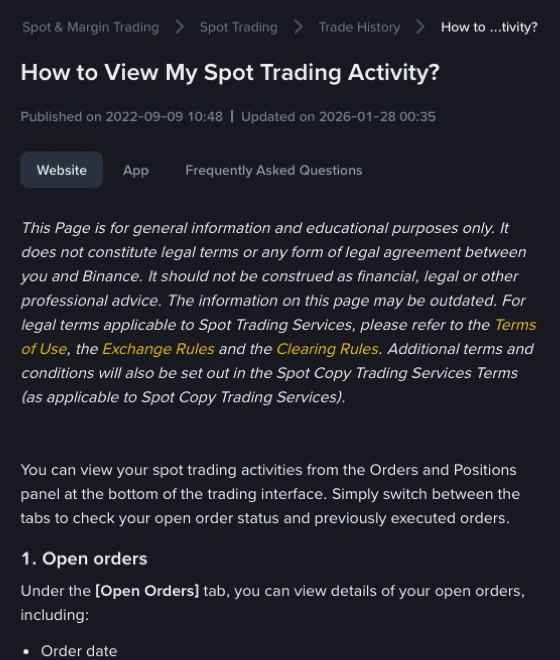
To find out which zone the Trade History tab on the website or in the app is showing:
- Pick one fill on the page. Write down the order ID, the trade ID if one is shown, and the full date and time.
- Find the same fill in the exported file. Match the trade ID first, then the order ID, pair, side, price and executed quantity. One order can produce several fills, so if only price and quantity agree and you cannot confirm an ID, do not treat the two rows as the same fill yet.
- Subtract the full date and time, not the hours alone. If the page shows 07:30 on 10 October and the file shows 23:30 on 9 October, the difference is +8 hours. Repeat with a second fill. When both agree, you can treat those records as shown in UTC+8.
Offsets are not always whole hours. India is UTC+5:30 and Nepal UTC+5:45, so differing minutes do not by themselves mean a mismatch. If the difference changes from one fill to the next, check whether you compared an order time against a trade time, or matched the wrong fill. The order time is when the order was placed; the trade time is when it was matched. A limit order that rested on the book for a while has two different times by design.
An order that filled in several pieces can carry a different time on each piece, so compare them row by row. For the price side of that, see how to work out the average price across several fills.
How Binance's own systems record time is visible in the public Spot API documentation. Its general notes state that all time and timestamp fields in responses are in milliseconds by default. The sample values for order and trade times are millisecond timestamps, and the sample response of the exchange information endpoint has a timezone field whose value is UTC. A millisecond timestamp is conventionally the number of milliseconds since 00:00 UTC on 1 January 1970, and it carries no time zone of its own. The moment in the example above is 1791588600000 as a timestamp: read in UTC it is 23:30 on 9 October, read in UTC+8 it is 07:30 on 10 October, and any timestamp converter will reproduce both. The Spot order rules lookup on this site reads that same public endpoint.
When does a daily candle start on Binance?
The Spot API uses UTC for candle intervals by default: the klines endpoint has a timeZone parameter whose default is 0 (UTC). With that setting, a daily candle opens at 00:00 UTC. For someone at UTC+8 that is 08:00 to 08:00 the next morning; for someone in India, 05:30 to 05:30.
Before comparing a fill price with a daily high or low, work out which candle the fill falls in. Back to the example: with UTC daily candles, the fill at 23:30 UTC on 9 October belongs to the 9 October candle, even though it was already the morning of the 10th locally. Compare it with the 10 October candle and a price outside that day's range is no surprise. It is simply the wrong candle.
The documentation adds two more points. If timeZone is supplied, kline intervals are interpreted in that zone, within an accepted range of -12:00 to +14:00. The startTime and endTime parameters are always interpreted in UTC. Which zone the charts on the website and in the app are drawn in is not stated in either of the two help articles cited above. So on a chart, look for the candle's opening time and a time zone label next to it. If the interface shows only a date or a price and never says where the daily candle starts, it cannot yet settle which day your fill belongs to. With API data you get each candle's open and close time: confirm the pair, the daily interval and the timeZone, then place your fill time between them.
The 24h change is not “how much it moved today”
The documentation defines the 24hr ticker as “24 hour rolling window price change statistics”. It is a rolling window: count back 24 hours from this moment, and the window slides forward as time passes. No calendar day in any time zone is involved. If the 24h change, high and low on a market page come from this kind of data, they are different numbers from “today's daily candle”, and there is nothing to reconcile when they disagree. The documentation also lists a separate set of per-trading-day statistics (Trading Day Ticker), whose timeZone defaults to 0 (UTC) as well.
| Where you are looking | How time is counted | Written in | How to confirm it yourself |
|---|---|---|---|
| Exported Spot trade history file | UTC+0 | Help article on downloading the trading history statement | Read the time column header, convert, then filter by the day you want |
| Times on the order page, website or app | Not stated on the help pages | The help article's field list names only “Order date” | Find one fill on the page and in the export, compare full date and time |
| One day on the daily candle | UTC by default in the API, another zone on request; chart zone not stated on the help pages | timeZone parameter of the klines endpoint, Spot API documentation | Find the candle's open and close time and their time zone |
| 24h change | Rolling 24-hour window, not a calendar day | 24hr ticker, Spot API documentation | There is no day boundary, so no time zone applies |
Converting UTC to local time in Excel or Google Sheets
- Save a copy of the exported file and edit only the copy. Keep the original untouched; it is the version you will want for reconciling later or for a support request.
- Insert a column next to the time column and name it after your zone, for example “Time (UTC+8)”. If the original header has no time zone in it, rename it “Time (UTC)” in the copy.
- Fill the new column with the original time plus your offset divided by 24. With the original time in A2, UTC+8 is
=A2+8/24, filled down. In Excel and Google Sheets a date-time value of 1 is one day, so 8/24 is 8 hours. For India, UTC+5:30, it is=A2+5.5/24, which turns the example row into 05:00 on 10 October. - Format the new cells to show both date and time. Otherwise you may see nothing but a number with decimals.
If the formula returns an error or the new column stays empty, one possible cause is that the spreadsheet has read the original times as text. To check, change the format of an original time cell to Number. A real date-time turns into a number with decimals; text does not change at all. Text has to be converted to a date-time before the formula works, for instance with Excel's Text to Columns or a date function.
Filter the converted column by local date and the row from the example now appears under 10 October.
Daylight saving: the offset changes twice a year
UTC has no daylight saving time. The times in the export never shift with the seasons; what shifts is your local offset from UTC. Singapore, Manila and India keep the same offset all year, so one formula covers the whole file. London is UTC+0 in winter and UTC+1 in summer. New York is UTC-5 in winter and UTC-4 in summer.
Take New York and a row that reads 12:00. During standard time that is 07:00 locally; during daylight time it is 08:00. A file that spans the changeover cannot take one formula for the whole column. Split it at the moment the clocks changed and give each part its own offset. With a negative offset the formula subtracts, for example =A2-5/24. Changeover dates differ from year to year, so look up the dates for your location and year.
Write the time zone next to the time when you contact support
A bare “23:30” leaves the reader guessing whether it is the UTC from the file or your local time. When you describe an order to support, or note it down for your own records, put the zone after the time: “2026-10-09 23:30 (UTC)” or “2026-10-10 07:30 (UTC+8)”. Both name the same moment and either will do. Add the order ID as well; an ID reads the same in every time zone.
The same goes for screenshots. Whatever zone your earlier check showed the page to be using, write it beside the screenshot. For what to cover up before sending one, see how to share a Binance order screenshot safely.
Sources: Binance help articles “How to Download Spot Trading Transaction History Statement” and “How to View My Spot Trading Activity”, and the Binance Spot API documentation (rest-api.md), linked above and read in October 2026.