Before you start
Your first Binance spot trade: placing an order and checking the result
A practical way to place a spot order and build a record that shows what actually happened.
After a first spot order, check four records before you compare your balances with the subtraction you had in mind: the instruction you submitted, the order's status, the trades that actually executed, and the balances after fees and reservations. If a confirmation flashed by and a balance looks off, check which of those four records you have actually opened; a mismatch at this point can simply mean only one of them has been checked so far.
This guide treats the order form as an instruction and the later records as a receipt. It uses fictional assets and prices so you can follow the arithmetic without mistaking an example for a live market or a suggestion to trade.
Write the trade before opening the form
Before choosing buttons, write one sentence that describes the intended exchange. For example: “Buy 8 LUMA with USDT, spending about 50 USDT before fees, and do not pay more than 6.30 USDT per LUMA.” This is a limit-order plan because it contains a maximum price.
A market-order plan would sound different: “Buy approximately 50 USDT worth of LUMA using the prices available now, accepting that the final average price is not fixed in advance.” The plan states what is controlled and what remains uncertain.
Then add five labels:
- Account location: Spot.
- Pair: LUMA/USDT.
- Side: buy.
- Input unit: LUMA quantity or USDT spending amount, depending on the form.
- Evidence after submission: order status, executed quantity, fees, and Spot balances.
This note catches mistakes that a familiar-looking screen can hide. If the form says LUMA/USDT but your note says USDT/LUMA, stop. If the amount box is labeled LUMA while your number means USDT, stop. If the account location is Funding rather than Spot, resolve that before ordering.
Confirm the asset is available in Spot
An account-wide portfolio value is not the same as a spendable Spot balance. Platforms can separate assets across Spot, Funding, Earn, Margin, or other services. Find the intended quote asset in Spot and check the available amount. A visible total may include funds that are reserved or held elsewhere.
Binance's Spot glossary distinguishes free from locked. Free is available to trade or withdraw. Locked is reserved by open orders or other services. If you already have an open buy order using 20 USDT, those 20 USDT may be locked and unavailable to a second order even though they still appear in a total.
If you need an internal transfer, verify the direction, asset, and amount. Do not treat the transfer confirmation as evidence of a trade. After transferring, return to the Spot balance and confirm that the free amount changed as expected.
Teaching snapshot. Total USDT: 80. Free: 55. Locked: 25. A new order that needs 60 USDT cannot use the full total because only 55 USDT is currently free. First inspect the open orders or other service that accounts for the 25 USDT.
Read the pair from left to right
In LUMA/USDT, LUMA is the base asset and USDT is the quote asset. The base asset is what the pair trades in quantities. The quote asset is what expresses the price. A displayed price of 6.25 means 6.25 USDT for one LUMA.
On the buy side, you give up quote asset and receive base asset. On the sell side, you give up base asset and receive quote asset. The words “buy” and “sell” refer to the base asset, which is why reading the pair correctly comes before entering an amount.
Keep asset symbols in the arithmetic:
8 LUMA × 6.25 USDT/LUMA = 50 USDT.
Quantity is 8 LUMA. Price is 6.25 USDT per LUMA. Notional is 50 USDT before fees. If you erase the units and only remember “8 × 6.25 = 50,” it becomes easy to paste 50 into the LUMA field.
Some market-buy forms ask for the quote amount you want to spend. Binance's Spot glossary calls that concept quoteOrderQty. Other forms ask for base quantity. Do not assume every amount box works the same way. The field label and preview decide the unit.
The dedicated guide to base and quote units covers pairs where the same asset changes sides. For a first order, it is enough to say the displayed price aloud: “six point two five USDT per LUMA.”
Choose between price control and immediacy
A market order trades against the best available prices and liquidity. It asks the matching engine to keep taking available orders until the requested quantity is filled or the accessible liquidity is exhausted. It gives you no single guaranteed execution price before submission.
A limit order sets a price boundary. A buy limit can fill at your limit or a lower price; a sell limit can fill at your limit or a higher price. The boundary does not guarantee a fill. The order may rest, fill in pieces, or remain unfilled if no compatible opposite order reaches it.
The choice is not “easy order” versus “expert order.” It is a choice between different uncertainties:
| Question | Market order | Limit order |
|---|---|---|
| Is the execution price fixed beforehand? | No | A worst acceptable price is set |
| Can it move across several prices? | Yes | Yes, within the limit |
| Can it wait open? | Usually not as a resting order | Yes, depending on instructions |
| Can it fill only in part? | Possible if accessible liquidity is exhausted | Yes |
Look at the order book, not only the latest trade. The latest price reports a completed trade. The order book lists currently open bids and asks. Your next execution depends on compatible liquidity available when the order reaches the matching engine, not on a screenshot you saw a moment earlier.
The limit order versus market order guide compares these trade-offs. Before submitting, check whether you need a price limit or are willing to accept changing execution prices for an immediate attempt.
Check the current trading rules
A mathematically sensible order can still be invalid. Each symbol can have filters for price increments, quantity increments, minimum or maximum quantities, and notional value. The interface may round, warn, or reject an entry that does not meet the current rules.
For a limit order, notional is price multiplied by quantity. An order for 1.2 LUMA at 6.25 USDT per LUMA has a notional of 7.50 USDT before fees. Whether that is allowed depends on the current symbol and account rules. Never copy a minimum from an old tutorial.
Market-order notional checks also should not be simplified to “the exchange always uses a five-minute average.” Binance's current filter documentation can use a non-null reference price; where a filter uses avgPriceMins, a weighted average applies, and a value of zero can mean the last price.
Public symbol information also does not reveal every account-specific restriction. Binance documents a signed myFilters method for account-relevant filters, including personal asset limits. A public market-data page cannot prove that your balance, verification, product eligibility, or account-specific limits permit the order.
If the order form rejects the entry, read the actual message and recheck pair, side, price, quantity, notional, available balance, and account eligibility. Do not keep changing digits at random until one submission passes.
Read the final preview as a sentence
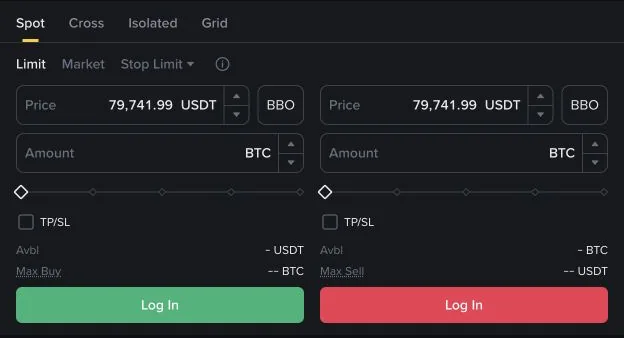
Immediately before submission, translate the form into ordinary language. “Buy 8 LUMA, paying no more than 6.30 USDT for each LUMA, with a maximum notional of 50.40 USDT before fees.” Compare that sentence with your original note.
Check the following fields in a fixed order:
- Pair and account location.
- Buy or sell side.
- Market or limit type.
- Price and its quote-per-base unit, if applicable.
- Quantity or spending amount and its asset unit.
- Estimated total and fee information shown by the interface.
- Any time-in-force or additional option you intentionally selected.
Leave unfamiliar advanced options alone until you understand them. A first spot order does not need to demonstrate every feature on the screen. It needs to match one written instruction that you can verify afterward.
Also read any estimated-receive figure as an estimate. For a market order, available prices can change before execution. For either type, fees and rounding can change the net quantity. The preview is valuable because it can expose a wrong unit or side, but the completed order record remains the source for what actually traded.
Separate acceptance from execution
When you press the final button, three different outcomes can look similar for a moment. The request can be rejected before becoming a working order. It can be accepted but remain open. Or it can execute partly or fully. A generic success message may only confirm receipt or acceptance.
Open the order record and find its status. Binance's Spot glossary defines NEW as successfully sent to the matching engine, PARTIALLY_FILLED as partly filled, and FILLED as completely filled. CANCELED means the order was canceled; it does not say that earlier fills were undone.
Record these quantities:
- Original quantity: the base quantity requested.
- Executed quantity: the base quantity that actually traded.
- Remaining quantity: original minus executed, unless the interface already supplies it.
An order requested 8 LUMA. The executed quantity is 3 LUMA. The remaining quantity is 5 LUMA. If the status is partially filled, those 3 LUMA are completed trades; the other 5 LUMA may still be open under the order's instructions.
If you do not find the order where expected, search both open orders and order history, using the correct pair and time range. A filled or canceled order often leaves the open-order list. A rejected request may appear differently or only as an error. Do not submit a duplicate until you establish what happened to the first request.
Handle multiple matches and average price correctly
One user order can match multiple opposing orders. That means the requested quantity may execute in pieces at different prices. Order History shows one order-level row. Trade History lists the executions, line by line, with price, quantity, and fee; but Binance's Spot history guide says multiple matches can be counted as a single order in Trades History, so one Trade History row may combine more than one match. A details view or export may expose more granular data. Read each Trade History row as one recorded execution, and only call it a single match when the record actually provides that detail.
When individual execution pieces are available, calculate the average by weighting each price by its quantity. Do not take a simple average of price labels.
A different order from the 8 LUMA example above: a buy with a limit of 6.30 USDT per LUMA that executed in two pieces.
Fill detail:
- 3 LUMA at 6.20 USDT/LUMA = 18.60 USDT
- 2 LUMA at 6.30 USDT/LUMA = 12.60 USDT
Total executed quantity: 3 + 2 = 5 LUMA. Total quote value: 18.60 + 12.60 = 31.20 USDT. Weighted average price: 31.20 ÷ 5 = 6.24 USDT per LUMA. Both executions respect the buy limit of 6.30 USDT per LUMA.
A simple average of 6.20 and 6.30 would be 6.25, which is wrong because the first price applied to more quantity. The quantity-weighted result is 6.24. If the platform already shows a trustworthy average execution price, keep the calculation as a reasonableness check. If the platform only shows an order total, do not invent unseen fill rows.
Price movement between the preview and the actual match is normal for a market order because the order consumes available liquidity. A limit order can also have more than one execution price, but a buy should not execute above its limit and a sell should not execute below its limit under the basic limit-order definition.
Account for fees in the right asset
A correct gross trade calculation can still differ from the net balance change because of fees. Check both the fee amount and the fee asset. Binance's Spot commission guide explains that the received amount is the quantity on a buy. Under its ordinary example path, a buy commission is therefore deducted from the received base asset, or it can be charged in BNB when the relevant discount is enabled and sufficient BNB is available.
Suppose the gross buy executed 5 LUMA for 31.20 USDT. If the recorded commission is 0.005 LUMA, the net LUMA increase is 5 − 0.005 = 4.995 LUMA, while the USDT decrease from the executions is 31.20 USDT. If the account instead records the commission in BNB under an enabled discount path, the gross LUMA increase is 5 LUMA, the USDT decrease is 31.20 USDT, and the BNB balance decreases by the fee amount shown in the record. Use the actual commission asset and amount displayed for the trade.
Do not infer the fee solely from the difference between two portfolio-value snapshots. Portfolio values can move with prices and may combine accounts. Compare asset quantities in the same Spot account, using timestamps close to the order and accounting for other transfers or orders.
Reconcile the order, trades, and balances
The strongest evidence is agreement among independent records. The order record supplies the requested and executed amounts. Trade details, when available, supply executed prices and fees. Spot balances show what is now free or locked.
For a filled buy, you normally expect:
- The order status says filled and remaining quantity is zero.
- The base asset increases by the executed amount minus any buy commission recorded in base.
- The quote asset decreases by the executed quote value in this ordinary buy example.
- If the commission is recorded in BNB instead, the BNB balance also decreases by that recorded amount.
- No amount remains locked for that completed order.
For an open limit buy, you may see no executed base quantity, no trade fee, and some quote asset moved from free to locked. For a partial fill, you can see all three effects at once: received base, spent quote, and quote still locked for the remainder.
If the numbers do not reconcile, broaden the time window and check for simultaneous activity. An internal transfer, another open order, a fee in a third asset, or an account-location mismatch can explain a difference. Record the order ID and non-sensitive evidence before asking support. Never post account identifiers, full screenshots, or authentication information publicly.
Use the same start and end points for the comparison. A Spot balance before the order and a whole-account balance after it are not comparable. Neither are a free balance before submission and a total balance after submission. Label every snapshot with account area, asset, free or locked category, and time.
Small rounding differences can also come from displayed precision. The interface may show fewer decimal places than the underlying record. Keep the full precision available in the order details or export, and round only the final figure you present to yourself.
Handling the unfilled part of your first order
An open or partially filled limit order leaves a decision. You can keep waiting under its existing instructions, or request cancellation of what remains. Do not treat cancellation as a rewind. Completed fills remain completed.
Because matching and cancellation are separate requests, another fill can occur while a cancel request is in flight. After canceling, reload the final order status and executed quantity. Then check that the appropriate unspent balance returned from locked to free.
If you plan to replace the order at a different price, first establish the final executed quantity of the old order. Otherwise, a replacement for the original full amount can leave you with a larger position than intended. The partially filled order guide walks through that decision with a timeline.
Keep a private note that can answer later questions
A useful trade note is small enough to maintain. Save the pair, side, order type, submitted time, original quantity, executed quantity, average execution price if supplied, total quote value, fee and fee asset, final status, and the relevant Spot balance changes.
Use a local record that does not expose login data. Crop or redact account identifiers if you keep screenshots. A note should help you understand the trade, not create a new security risk.
If a difference remains, note the exact field, asset unit, and time, then return to the original record. Once the note matches, date it and keep it with the exported history for that day. Before a second order, reread the plan you wrote at the start and take the amount from that plan, not from how the first trade turned out.